Agents - Phantom
The Agents screen allows you to create Phantom agents and configure their user settings.
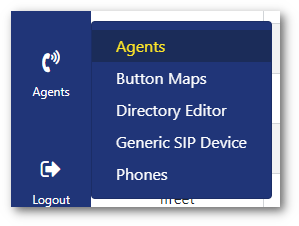
To access this screen:
- Click on Agent from the Agents menu.
Create an agent
To create a new agent:
- Click on Create New Agent in the top-right.

- Configure the agent settings:
Name: This is the name that will be displayed on the wallboard
Prefix: The number Prefix.
Number: Set your agent extension number.
Pin: Agent login Pin used for additional security (Set to 0 if no Pin required).
Context: This is the Outbound dialling rule for the agent.
Ring Time: This is how long a call will ring before being passed to another agent or missed.
No Action: No action will be completed if the agent is unavailable.
Voicemail: A voicemail can be left for the agent, and a notification will be sent to their email (Note: It is not recommended to use enable this for agents who will be a member of a queue).
Follow Me: This will call the phone number you have entered into the field after the Ring Time has expired (Note: Please enter the full number including the area code, and this should not be set if the agent is going to be a member of the queue).
CID: This is the number the system will try and call if the agent dials out. The number placed here will depend on your Line Provider (Note: If nothing is entered the system will use your main office number).
Penalty: This will determine when an agent is called when a call enters the queue (Note: Agents with low priorities will be called before agents with high priorities).
Static: This sets if the agent selected is Static or Roaming, for example, a manager will be a fixed static extension, whereas queue members will be roaming (Note: The Device ID corresponds to the handset).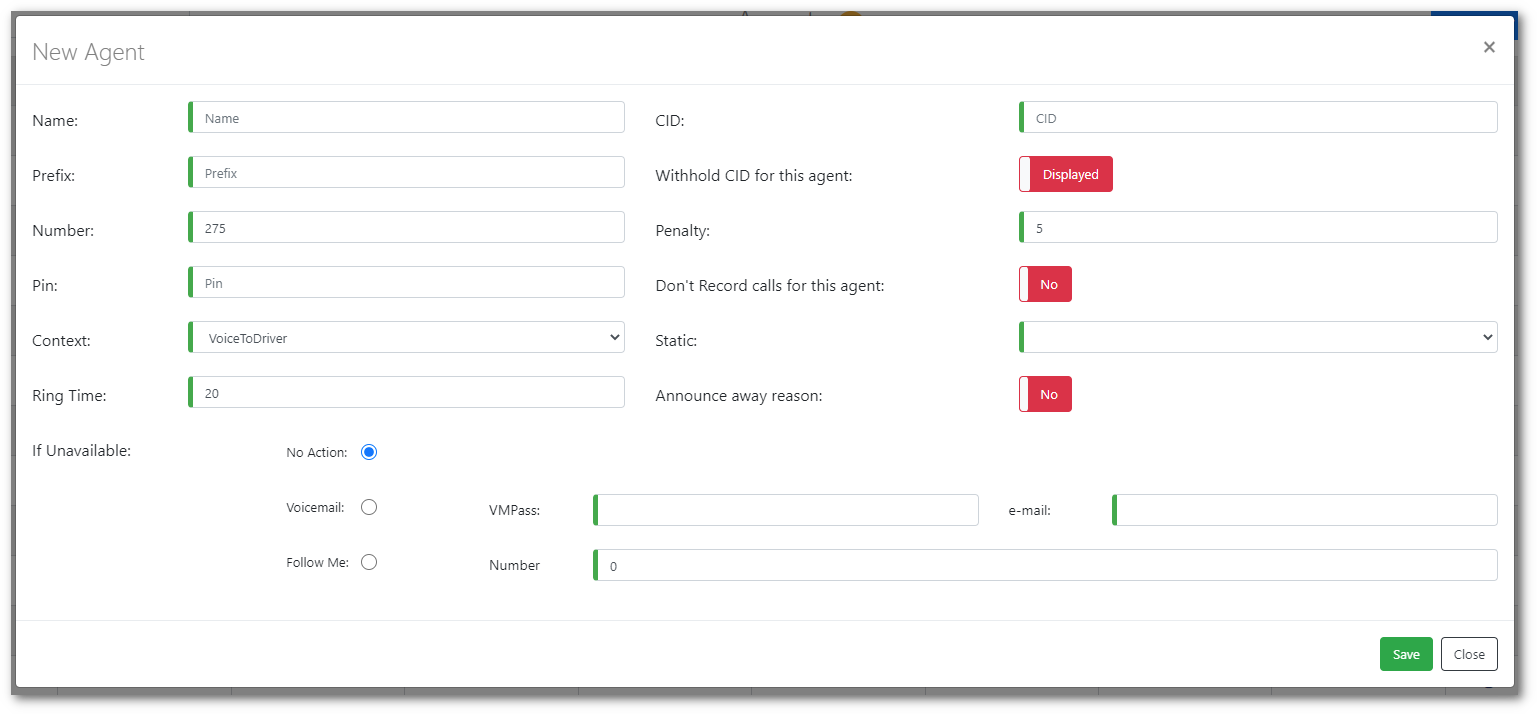
- Then click Save.
Agent queue controls
To assign, unassign, or pause an agent:
- Click on the (Cog) icon on an agent record.
- Select from the available options:
Assign/Unassign: Click to assign or unassign an agent from a queue.
Join/Leave: Click to force an agent to join or leave a queue.
Pause/Unpause: Click to pause or unpause an agent in a queue. - Then click Close.
Configure agent settings
To configure the agent settings:
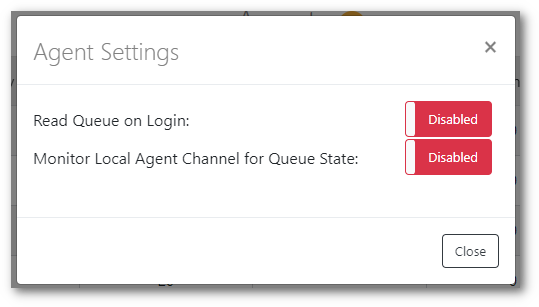
- Click on Agent Settings in the top-right.

- Toggle the agent settings:
- Then click Close.