Global Settings: Interface - 365 Management
The Interface screen is where you can configure what drivers can see while on Driver Companion.
To access this screen:
- Click on Interface from the Drivers/Vehicles > Driver Companion > Global Settings dropdown menu.
Interface Settings
The following settings can be configured:
Off Job
- Disclaimer: Write a custom disclaimer to be displayed to drivers when loading Driver Companion.
- Show Disclaimer Every Time: Enable to show the disclaimer every time a driver opens Driver Companion.
- Broadcast Advanced Mode: Select the broadcast advanced mode.
- Warning Time: Drivers will see jobs based on the 15 and 30 minute warning times.
- Pickup Time: Drivers will see jobs based on the booking pickup time.
- Broadcast Pages: This allows you to add custom broadcast pages for showing jobs with certain capabilities on the Zone Screen.
On Job
- Booking Offer Indicates App Booking: Enable to show a different indicator on the Job Offer for each booking type.
- Booking Offer Timeout (secs): Set how long a driver has to accept or reject a job offer.
- Hide Destination: Select if the booking destination should be hidden.
- Off: The destination will be shown.
- Until picked up: The destination will be shown when the custom has been picked up.
- Always: The destination will always be shown.
- Pickup Password Mode: Select the password mode on pickup.
- None: No password required.
- Telephone last 2 digits: The driver must enter the last two digits of the customer’s telephone number.
- Send Favourite Destinations: Select if a customer’s favourite destinations should be shown for ‘as directed’ bookings.
- Off: Favourite destination will not be shown
- Optional: A driver can select a favourite destination or not.
- Mandatory: A driver must select a favourite destination.
- Enable Signature Capture: If enabled, account customers can give their signature before a job can be cleared.
- Enable Announcements: Enable to show an ‘Announcements’ button on Driver Companion in the left-hand menu.
- Announcements URL: Add a custom URL for your company announcements.
- Button Name: This allows you to rename the ‘Announcements’ button.
- Booking Offer Fields: Select which fields should be shown on the job offer:
Broadcast Columns
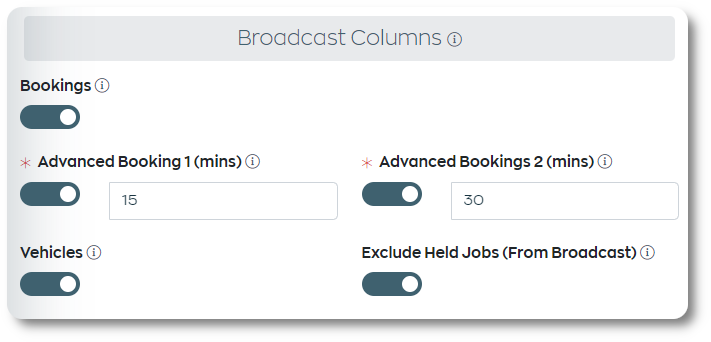
- Bookings: Enable to allow drivers to see ‘upcoming’ bookings.
- Advanced Booking 1 (mins): Set a custom time in minutes for advanced bookings to be shown in Driver Companion’s job sorting.
- Advanced Bookings 2 (mins): Set a second custom time in minutes for advanced bookings to be shown in Driver Companion’s job sorting.
- Vehicles: Enable to allow drivers to see how many vehicles are in each zone.
- Exclude Held Jobs (From Broadcast): Enable to hide ‘Held’ jobs in Driver Companion.
Zone Enquiry
- Active Bookings: Enable to show ‘active bookings’ when a driver uses the zone Enquiry command.
- Advanced Bookings (mins): Only advanced bookings within the set time will be shown when using the Enquiry command.
- Zone Enquiry Max. Bookings: Set the maximum number of bookings that will be shown when using the Enquiry command.
- Zone Enquiry Fields: Set which booking fields should be shown when using the Enquiry command.
- Account Balance Enquiry Mode: Set if a driver should receive his Current or Previous Balance when requested via Driver Companion.
- Send Preallocated Job Notifications: Enable to show driver notifications for pre-allocated jobs.
- Send Queue Positions: Enable to show drivers their current zone queue position.
- Show Wall Surge Percentage: Enable to show drivers the ‘Wall’ surge percentage.
Reports
- Start Of The Week: Set to the start of your working week so drivers can view their reports on a week-by-week basis.
- Payment: Enable to show the ‘Driver Sheets’ report to drivers.
- Earnings: Enable to show the ‘Earnings’ report to drivers.
- Missed Jobs: Enable to show the ‘Missed Jobs’ report to drivers.
- Ratings: Enable to show the ‘Ratings’ report to drivers.
- Busy Periods: Enable to show the ‘Busy Periods’ report to drivers.
- Busy Metric: Select which metric the busy periods should be based on.
- Busy Percentile: Set to determine which percentage of bookings are classed as busy.
Interface
- New Job Offer Screen: Enable to override the current job offer screen with the new and updated offer screen.
Earning Report Optional Fields
- Area Charges: Enable to show ‘Area Charges’ on the earnings report.
- Fares: Enable to show ‘Fares’ on the earnings report.