How to bid for jobs - DC+ (Beta)

Driver Companion+ is currently in beta. You may encounter bugs, and features and behaviour may change as improvements and updates are made.
Bidding allows you to bid for active and prebooking jobs (depending on your taxi company's set up), allowing you to access more work in your area.
To access the Bid section, you must first be online.
When you are online, tap the Bid tab to view all jobs currently available for bidding.
 Note: If there are no jobs available to bid on, a message will be displayed on a blank screen letting you know that no bidding jobs are currently available.
Viewing available bids
The Bid screen displays all available jobs as individual job cards. Each card shows key information, including:
- Pick-up and destination details
- Payment type
- Fare amount
- Other job information
To view more information about a job, tap the job card.
How to submit a bid
There are two ways to bid on a job:
- Tap on a job card.
- Review the booking details.
- Tap 'Bid' or swipe right to submit your bid.
You can skip a bid without penalty by tapping 'Skip bid' or swiping to the left. Doing so, removes the job from the Bid list.
You can also exit the bidding view by tapping the 'X' button in the top-right of the screen. The job will remain in the bidding list.
For faster bidding, you can use swipe actions directly from the Bid screen:
- Swipe right on a job card to quickly submit a bid.
- Swipe left on a job card to remove the bid from your menu.
 Important: Once a bidding job has been removed from the menu, it cannot be recovered.
What happens after you bid?
After submitting a bid, the system determines which driver is offered the booking.
If your bid is successful:
You will receive a job offer in the app. From there, you can accept or reject the job.
If your bid is unsuccessful:
A message will appear in the app informing you that your bid was not successful.
There can be several reasons why a bid is unsuccessful, including, but not limited to:
- Another driver with a higher priority was awarded the booking.
- You were too far away from the pick-up location.
- The booking was allocated to another driver based on system criteria.
Using Autobid
Autobid automatically places bids on available jobs for you, helping you receive work faster without manually bidding on each job.
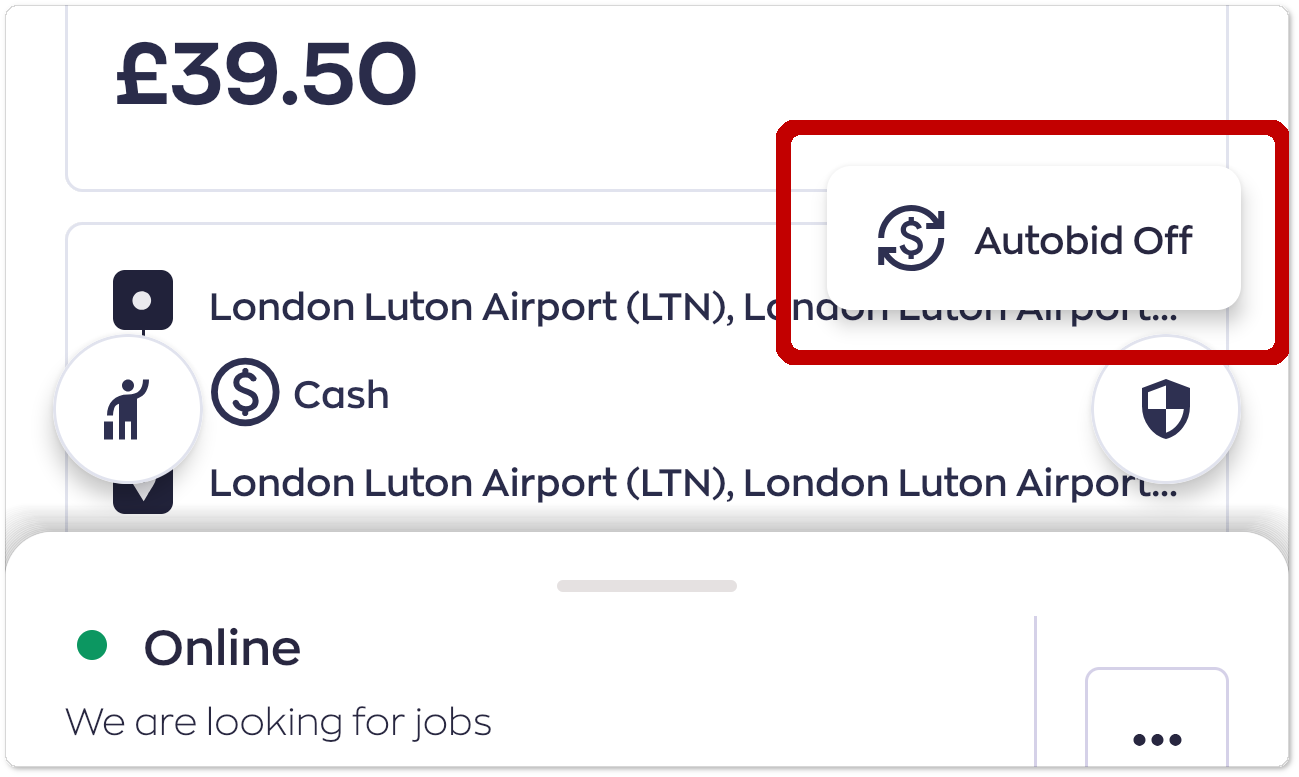
To enable Autobid:
- Open the 'Bid' screen.
- Tap the 'Autobid button'.
- Tap the toggle switch to turn 'Autobid On'.
- Once enabled, you can then select which zones to bid in, and set a radius of how far away a job can be to automatically bid on.
The app will automatically bid on available jobs as they come through.
To disable Autobid:
- Tap the 'Autobid' button.
- Tap the toggle switch to turn 'Autobid Off'.
You can enable or disable Autobid at any time.
Note: Depending on your taxi company's set up, you may not have access to the autobid feature.
Bidding on the Busy Map
The Busy Map uses heat zones to show how busy different areas are. If your taxi company has enabled job bidding, available jobs will also appear on the map.
If a job does not have a price assigned, it is shown empty with only the Bid (
If multiple jobs are located in the same area, they are grouped together in a numbered circle.
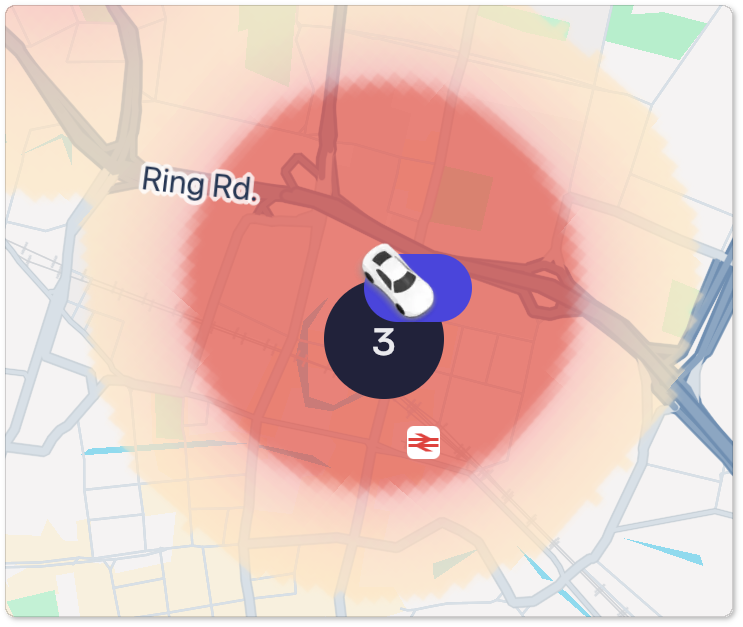
Tap the circle to zoom in and view the individual jobs.
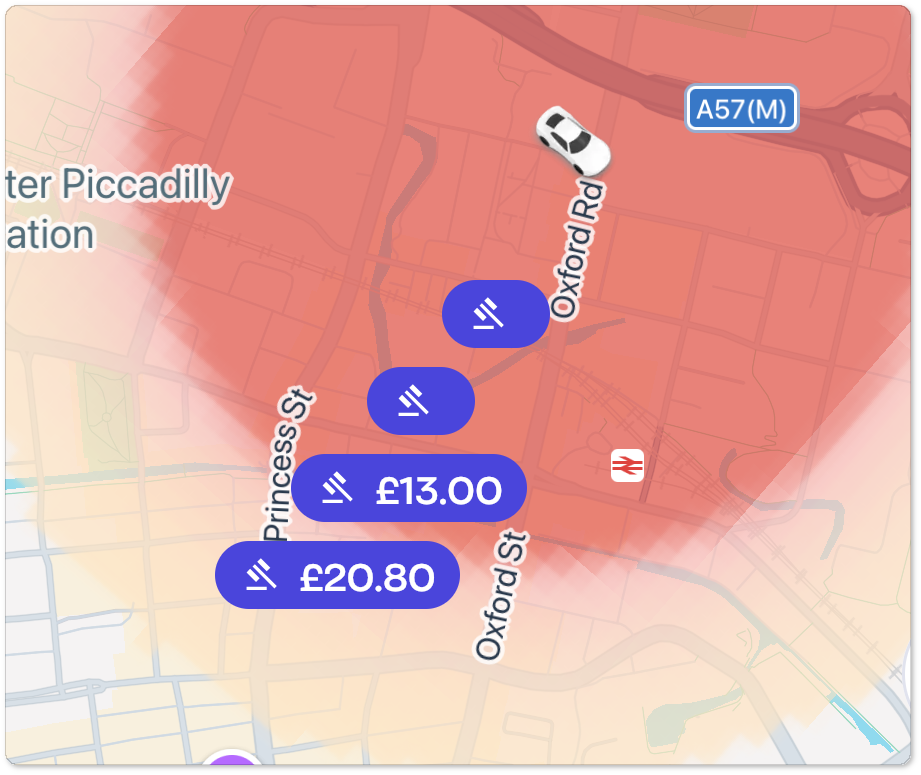
Tap the circle to zoom in and view the individual jobs.
To bid on a job, tap a job on the map to open its details. From there, you can view the job information and choose to Bid or Skip the job.
Hide jobs from the Busy Map
To remove jobs to bid from the busy map:
- Tap the Filter.
- Clear the 'Show jobs to bid' checkbox.
- Tap 'Apply filters'.