How to create a Christmas tariff - 365 Management
Creating a Christmas tariff
This article will guide you through a step-by-step process of setting up a Christmas variable tariff, which can be used to adjust your prices during the busy holiday season.
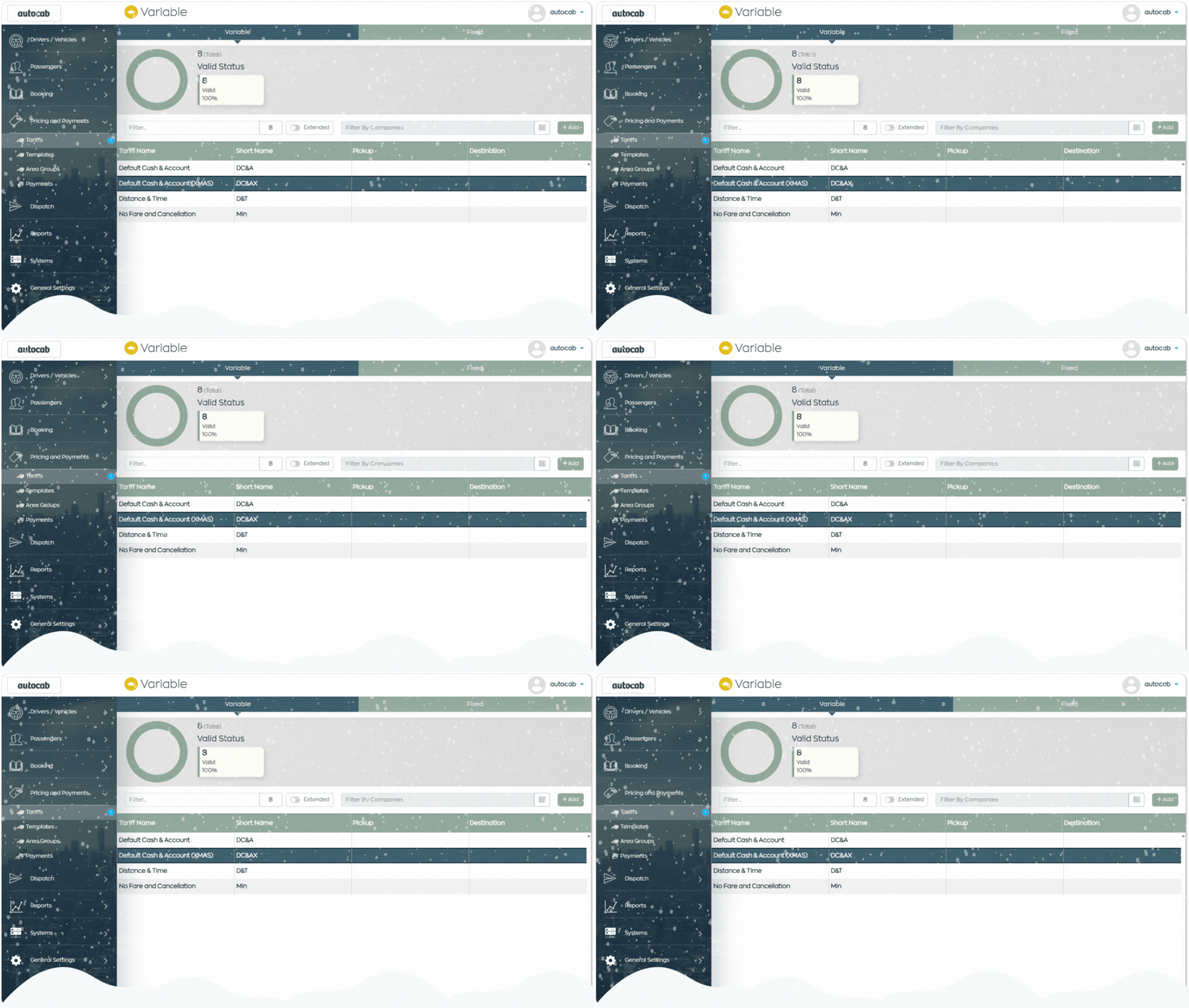
How to set up the tariff
To create a new tariff:
- Log into Autocab 365.
- Go to Management > Pricing and Payments > Tariffs > Variable.
- Open your Default Tariff or a tariff you would like to use for your Christmas rates.
- Click Duplicate.
- Confirm the duplicate by selecting I'm Sure and then open the new tariff.
 Note: If you do not duplicate an existing tariff, then you will have to configure all the tariff settings again.
Details Tab
- Append the tariff name with "(XMAS)" and the Short name with "X".
- Optionally, you can enter a description for the Christmas tariff.
If using a multi-company system, you can select which Company this tariff applies to. - Click Next or the Time & Location tab.
Time & Location Tab
- Scroll down to the Specific Times section.
- Select Custom.
- Click Add Additional Schedule.
- Set the following schedule settings:
- Include/Exclude: Set to Include.
- Schedule: Set to:
- Yearly: If you want this tariff to be used each year.
- Once: If you want the tariff to only be used once.
- Time Schedule: Set to Daily Time Range.
- From/To: Set from 24th December to 28th December (Or your preferred date range).
- Daily Between: Set from 6am to 5pm (Or your preferred time range).
- Press Create to add the schedule.
 Important: Make sure you delete the default schedule of "Include: Every Day Midnight to Midnight" that is automatically generated.
To delete, double-click on the schedule in the table and press the Delete button. - Click Next or the Job Types tab.
Job Types Tab
- Select the types of jobs you want this tariff to apply to.
You can leave default checked, in which the tariff will follow your settings set in Accounts. You can also choose here which Corporate or Kickback Accounts that should use this tariff. - Click Next or the Settings tab.
Settings Tab
- The Settings tab can be kept the same as the duplicated settings.
- Click Next or the Fare tab.
Fare Tab
- You can create a custom fare based on distance or waiting time, or use the Template button to select a pre-existing Variable Fare template.
- If creating a custom fare, set the Cost/Price for each section to your preferred amounts.
- Min From and To
- Waiting Time
- Pickup
- DistanceNote: The Cost is the amount a driver receives, the Price is the amount passengers pay, and anything in between goes to your company.
- Click Next or the Zone Charges tab.
Zone Charges Tab
- The Zone Charges tab can be kept the same as the duplicated settings.
- Click Next or the Test and Set Live tab.
Test and Set Live Tab
- We will test the tariff in the next section of this guide.
- Click Save to save your new XMAS tariff.
Testing your Christmas tariff
The following instructions will guide you through duplicating your new XMAS tariff and sending a booking to a test driver to test the tariff settings.
Creating a test tariff
- Open the Variable Tariffs section.
- Double-click to open your new XMAS tariff.
- Use the Duplicate button to create a new copy of your XMAS tariff.
- For the Tariff Name, append the text "TEST" and add a "T" to the short name (so you can easily identify the test tariff to delete later).
- Click the Time & Location tab.
- Set the Pickup and Destination to Full Addresses.
- Enter your office address (or preferred address passengers are unlikely to use).
- Scroll down to Specific Times.
- Click Add Additional Schedule.
- Set the following schedule settings:
- Include/Exclude: Set to Exclude.
- Schedule: Set to Once.
- Time Schedule: Set to Daily Time Range.
- From/To: Set the current date.
- Daily Between: Set from 6am to 5pm (Or your preferred time range).
- Press the Create button to add the schedule.
- Click the Test and Set Live tab at the top of the modal.
- Click Save.
Creating a test booking in Booking & Dispatch
- Go to the Dispatch screen in Booking & Dispatch (B&D).
- Press the Spacebar to create a new booking.
- Set the Pickup to your office address (or the address you set in Time & Location).
- Assign the booking to your test driver/vehicle.
- Configure any other booking options.
- Click Book.
Check that your test driver has received the booking with the cost/price matching your Christmas tariff and monitor how the meter clocks up. You can then delete the duplicated test tariff if everything is working as expected.
Note: You can also check the quote panel on the Booking Form to see if it is using your Christmas tariff.