Job offer screen: Quick guide - DC+ (Beta)

Driver Companion+ is currently in beta. You may encounter bugs, and features and behaviour may change as improvements and updates are made.
When a job offer is sent to you, the offer screen allows you to review the details of a job, which then you can decide to accept or reject. Upon accepting, it is immediately dispatched.
A job offer is sent when:
- You've bid for an ASAP job and won that job.
- A driver releases a prebooking that was assigned to them.
- An ASAP job is sent to you as you meet the criteria for it, e.g. you are first in the queue, you are the requested driver.
 Note: The information shown on the Job Offer screen may vary depending on your company's settings and the information provided when the booking was made.
 You may not see all of the fields described in this article. Some information may only become available after you accept the job.
Map
The map provides an overview of the journey. Each job offer shows a map including:
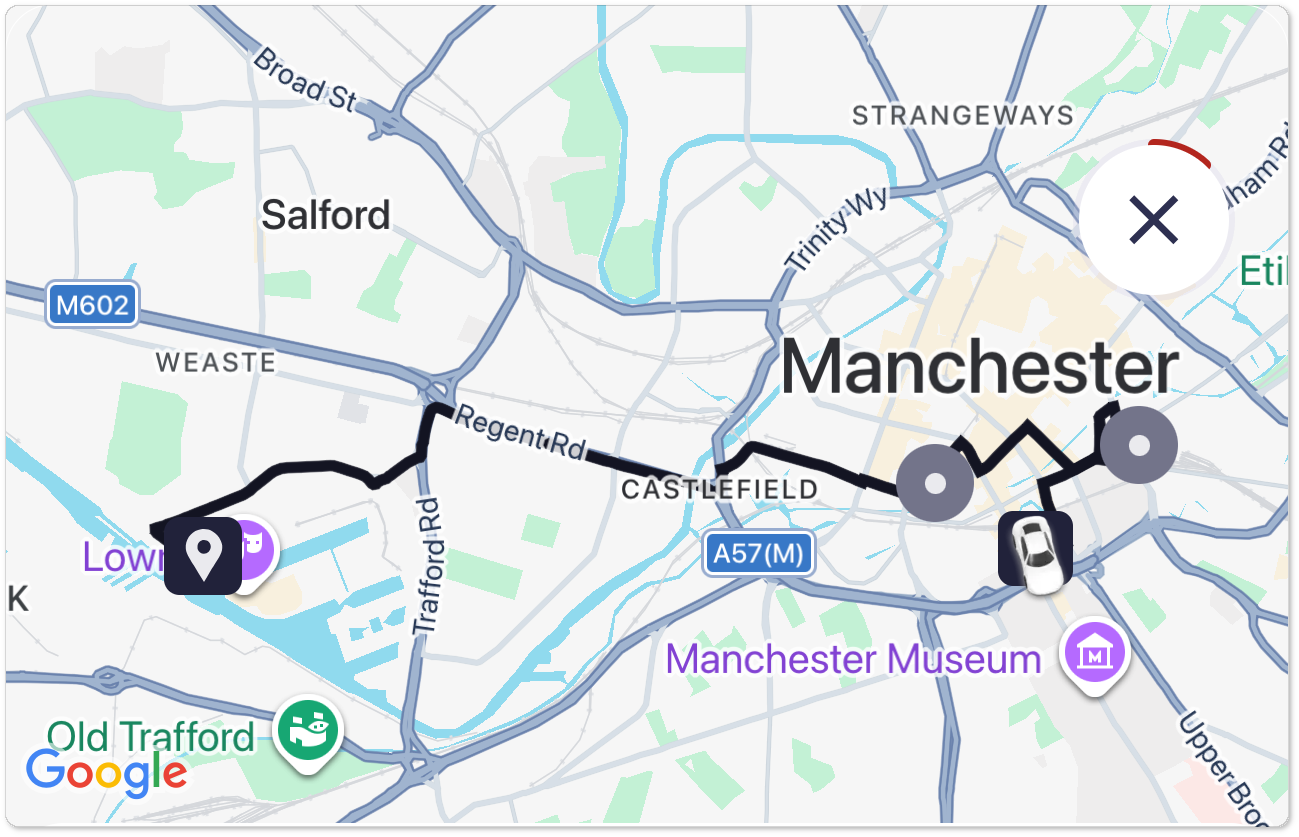
- Your car location.
- Pickup location.
- Any vias (extra stops).
- Drop off location.
- Route (black-line).
You can use the map for an overview of where the journey starts and ends.
Radius Map View
Depending on your system's configuration, some jobs may show a highlighted area (radius) instead of exaction locations.
In this view, the exact pickup and drop off locations are hidden, with the map showing the general area of the job.
Full job details become available after you accept the job.
Job Offer Type (Dispatch Source)
Under the map, you will see a label showing why the job was offered to you.
This can be your vehicle has been requested, you were the longest waiting available driver, or you placed a bid and won the job.
You may see other labels depending on how the job was allocated.
Price, Payment Type and Additional Job Info
The price for the job is shown alongside the payment method, this can be:
- Cash
- Card
- Account
- Loyalty
- Prepay
At the end of the journey, you will see the fare payment screen where the final fare is shown and any extras or loyalty cards can be applied.
Additional Job Information
Some jobs include extra information.
If available, it is shown alongside the payment type. Information can include the following:
- Requested capability - The short code symbol for the requested capability on the booking.
- Number of passengers - Shows number of passengers travelling.
- Luggage - How many pieces of luggage have been added to the booking.
- Flight information - Indicates that flight information has been added to the booking.
Time & Distance
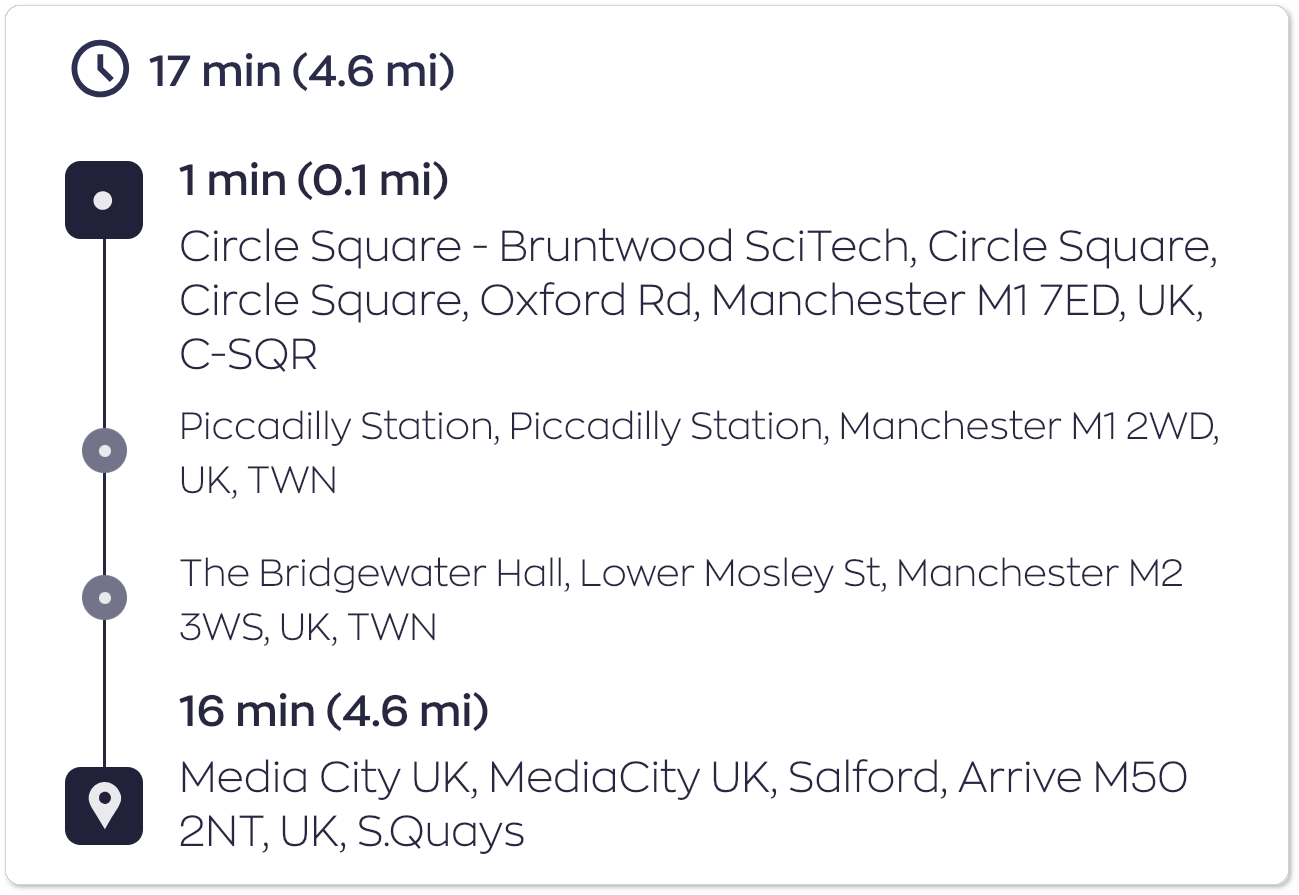
Your ETA (estimated time of arrival) and distance helps you understand how far away the pickup is, how long the total journey will take and the overall total distance.
Pickup, Drop off, and Via Stops (Extra stops)
The journey is shown in the order it happens with the pickup, vias (if the job includes one or more via stops which is an additional stop between the pickup and final destination), and the final drop off location.
More Details
Tap View more job details to see additional information.
Depending on the job, this can include:
- Pickup time
- Booking ID
- Account information
- Passenger name and/or phone number
- Flight information
- Booking for Company
- Note
- References
- Price
- Cost
Passenger Info
Some jobs show passenger information, including:
- Passenger name
- Passenger phone number
You can use the phone number to contact the passenger, if required.
Flight Information
For airport bookings, flight details may be available if a flight number was added to the booking.
You may see:
- Flight number
- Flight status (e.g. scheduled, delayed)
- Scheduled departure or arrival time
Accepting a Job
Tap 'Accept' or swipe to the right to take the job.

Once accepted, the job will be assigned to you.
Once accepted, the job will be assigned to you.
Rejecting a Job
Tap the 'X' in the top-right corner or swipe to the left to reject the job offer. If the timer runs out, the job offer is automatically rejected.
There may be a penalty for rejecting a job.
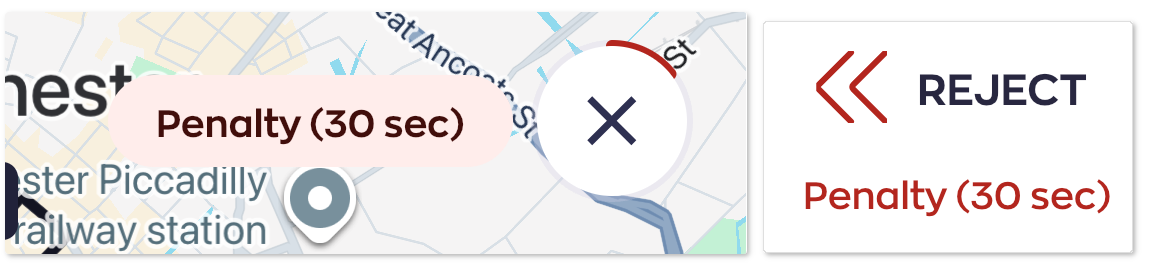
If so, a message with the penalty time will appear next to the 'X' button, or underneath the 'Reject' text.
If so, a message with the penalty time will appear next to the 'X' button, or underneath the 'Reject' text.
Frequently Asked Questions
Why can't I see certain information on the job offer?
If you can't see some job information, such as flight details, a passenger's phone number, or account information, it may be because:
- The information was not provided when the booking was made.
- Your taxi company has chosen to hide certain fields on the job offer screen.