Managing your prebookings - DC+ (Beta)

Driver Companion+ is currently in beta. You may encounter bugs, and features and behaviour may change as improvements and updates are made.
The prebookings section allows you to view, bid on, and manage future bookings, allowing you to plan your work ahead of time by securing jobs before they become active.
How to access the prebookings section
To open the prebookings section:
- Open the 'Bid' tab from the top menu.
- Tap 'Prebookings'.
Note: Depending on your taxi company's set up, you may not have access to the prebookings section.
From here, you can:
- View available pre-bookings that are open for bidding.
- Manage pre-bookings already assigned to you.
- View your upcoming schedule.
- Filter available pre-bookings to find suitable work.
Viewing available prebookings
The main prebookings screen displays future bookings that are available to bid on.
Each booking card shows key information, including:
- Pick-up location
- Drop-off location
- Date
- Time
To view more information, tap on a booking card to open the full booking details.
Bidding on a prebooking
There are two ways to submit a bid for a prebooking:
- Tap the job card.
- Review the booking information.
- Tap the 'Bid' button or swipe to the right.
For a faster bidding experience, you can:
- Swipe right on a prebooking card to instantly submit a bid.
- Swipe left on a prebooking card to remove the job from the list.
Filtering available prebookings
If there are a large number of bookings available, you can use the Filter option to narrow the results.
Filters can be applied based on:
- Timeframe
- Booking times
- Pick-up zones
- Drop-off zones
Viewing your prebooking schedule
The prebookings section includes a daily schedule view that helps you plan your upcoming work.
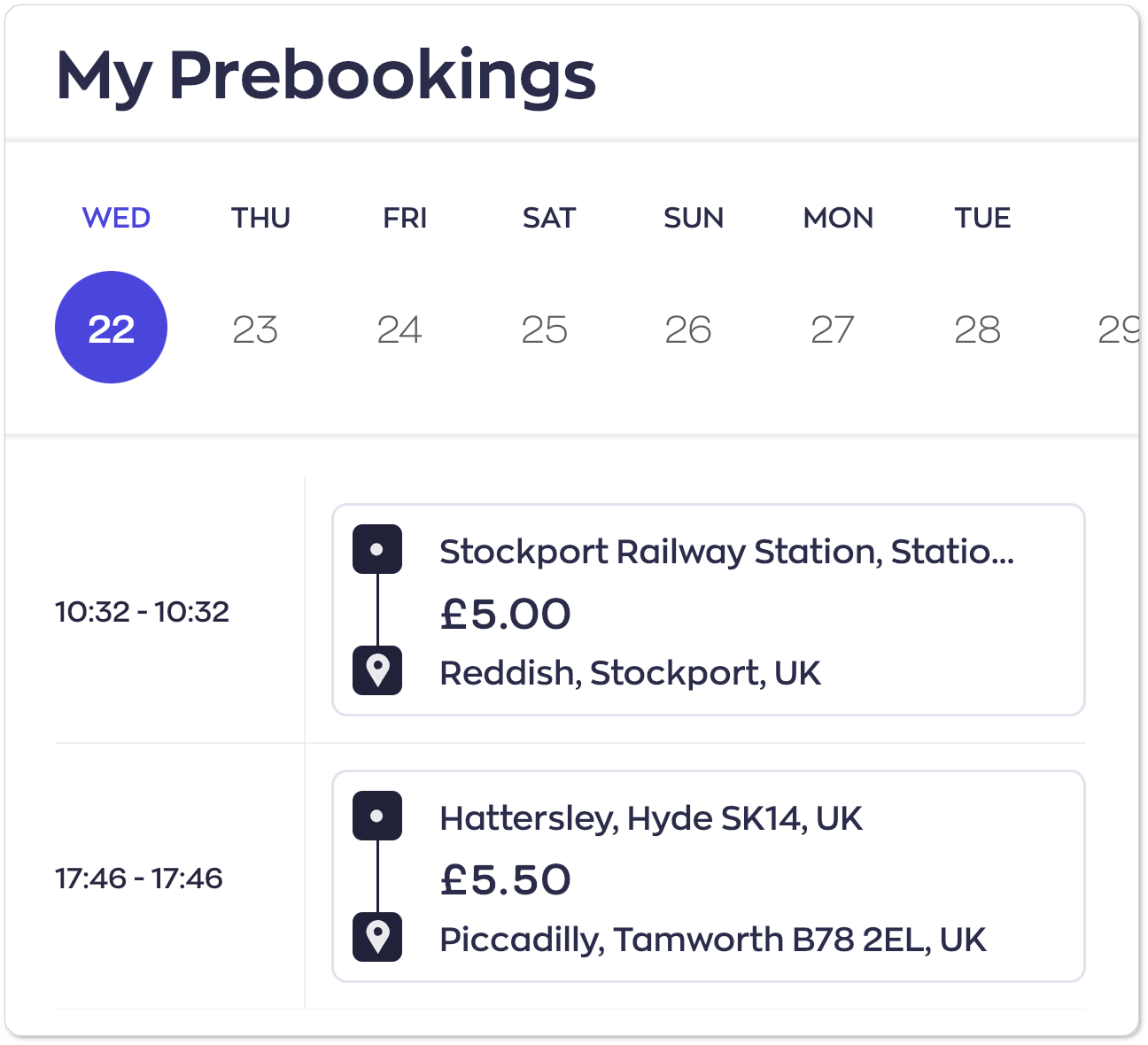
From this screen, you can view bookings assigned to you for the current day, making it easier to organise your day and maximise your earning opportunities.
Managing assigned prebookings
Prebookings may be assigned to you in one of two ways:
- An operator directly assigns the booking to you.
- You successfully win the booking through the bidding process.
Assigned bookings can be viewed by tapping the 'Jobs assigned to me' button.
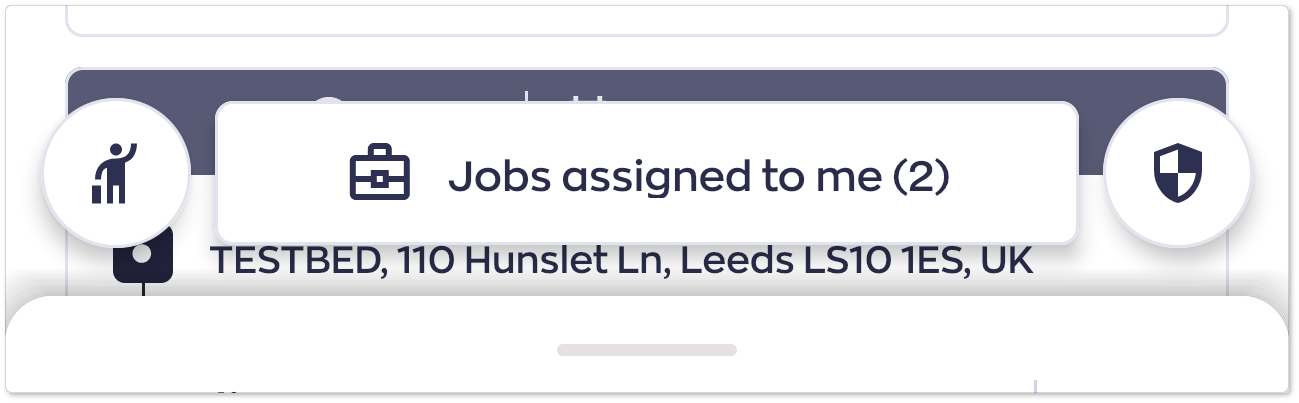
Tap on a booking to view booking information such as pickup and drop off locations,
Tap on a booking to view booking information such as pickup and drop off locations,
If you no longer wish to complete a booking but would like to make it available for other drivers, you can release it.
To release a booking:
- Open the assigned pre-booking.
- Tap Release or swipe to the left.
Once released, the booking becomes available for other drivers to bid on.
Note: Releasing a booking does not guarantee that another driver will accept or bid on it. If the booking remains unassigned, you may still be required to complete it.
Rejecting a prebooking
If you are unable to complete an assigned booking, you can reject it.
To reject a booking:
- Open the assigned pre-booking.
- Tap Reject or swipe to the right.
Note: There may be penalties if you decide to cancel the booking.
The booking will be removed from your schedule and returned to the dispatch process.